The episode leaves you with one question for its lead character. Watching the next installment and asking that question in a chat are different choices. One follows the released story; the other gives you a turn in a conversation. Knowing which one you want saves a lot of aimless tapping.
- Want the official next event? Choose the next episode and inspect its access prompt.
- Want to ask the character something? Choose the chat route and state the starting scene.
- Want a new image or video? Inspect that creation control separately; its presence does not prove that an episode is included.
Keep watching, or take the next turn?
An episode has an order chosen by its creators. A conversation has an opening, your message and an AI reply. Even when the same character appears in both, those formats answer different needs. A chat is a good fit when you want to ask why someone made a choice, invent a different meeting or explore a small branch of your own. It is not a substitute for watching a locked installment.
Separate appearance, story and recall. Recognizing the person on a cast card does not tell you which facts a new conversation has available. Our chat, memory and media explainer explains that distinction. Start with one desired interaction: “I want to ask about the unopened letter,” rather than “Continue everything exactly.”
Ready to choose a route? Open GoLove’s character catalog. This tracked link opens Explore; choose Series or a character inside the app. It does not open a named cast member’s chat or carry this page’s recap with it.
What the current Series screen actually shows
Public interface check: October 12, 2026, English desktop view, without a paid chat or completed generation. The GoLove Series catalog displayed five titles with differing episode counts: five, five, seven, six and nine. That is a snapshot of the catalog, not a schedule or an assurance that every title follows one payment pattern.
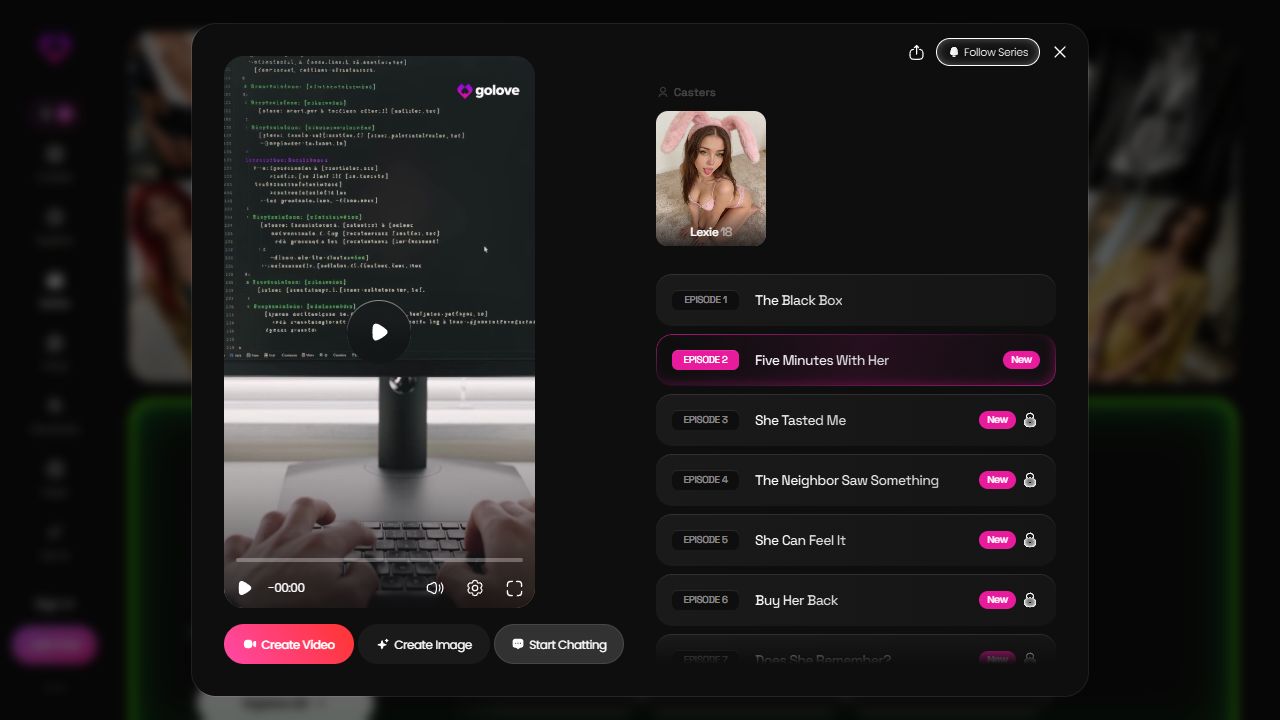
In My AI Girlfriend’s series detail, Episode 2 showed a player, a cast card and separate Create Video, Create Image and Start Chatting buttons. Those labels are useful for choosing an action. They do not demonstrate a completed generation, its cost, or what a chat knows about the episode.
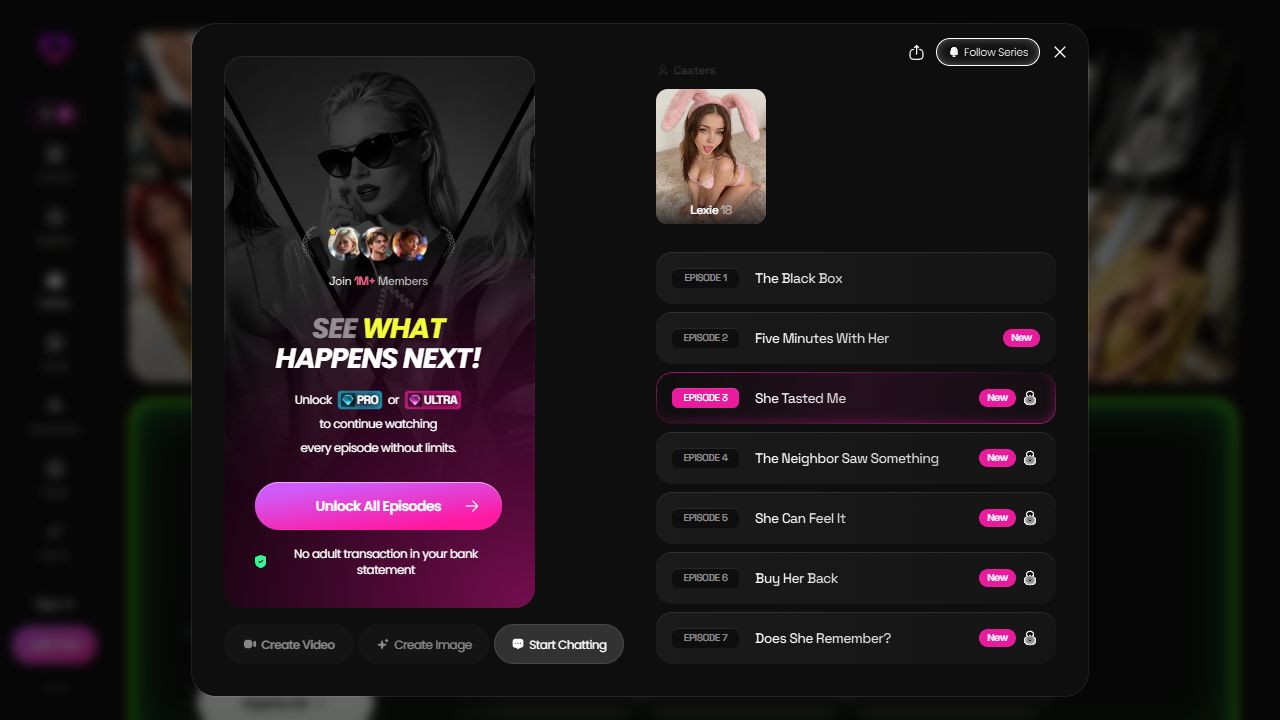
Selecting Episode 3 in that same public view presented a prompt naming PRO or ULTRA. The capture supports that specific access observation. It does not establish the price, an identical allowance across other titles, or the terms your own account will display. Read that prompt before deciding to pay. A chat recap cannot remove it.
Give a new conversation a small starting point
A useful recap needs less plot than you might think. Include the episode or moment you have in mind, one fact that matters now, and the question you want to ask. Write only details you know or deliberately propose. Mark an invented branch as your idea, so a new conversation does not start with a claim that its reply must reproduce the official script.
Here is an original example, unrelated to any provider’s episode: “After our rooftop conversation, we still have an unopened letter on the table. Shall we read it now, or talk about who sent it?” The letter gives the reply something concrete to work with. The question leaves room for a response. You do not need to paste an entire transcript or disclose personal information.
Keep the character’s speaking style separate from that starting fact. A quiet character can answer the same question differently from a teasing one without changing what is on the table. The personality writing guide gives you ways to choose a voice. This page’s tool only shapes a recap; it does not modify a provider profile.
Make the next line yours.
Keep the starting point small: one reference, one fact, one question.
Fill in all three details to create your recap.
This writing aid works in your browser. It sends nothing to an app, stores no draft in an account, and does not unlock episodes or transfer a character.
Read the output once before using it. Remove spoilers you do not want to discuss, change a fact you invented accidentally, and make the final question easy to answer in one turn. Browse GoLove for the conversation you want, then paste your text yourself. Choosing a character and copying a recap remain two separate actions.
Check one detail instead of assuming continuity
If you start a conversation, use one harmless fictional detail as a reference point. Ask who has the letter, where you left it, or which question is still unanswered. Compare the reply with the starting point you supplied. If it differs, correct that one detail rather than adding a long list of instructions about everything the character should remember.
An accurate answer can make that exchange useful, but it does not prove permanent recall or automatic transfer from the show. A reply can use the text you just pasted. Decide whether the conversation works for you on its own terms; keep watching when the official plot is what you want. This guide has not performed that chat check for you.
Choose the format that answers your question
Stay with episodes if you want the released sequence and its next reveal. Try a conversation if you want an adult fictional character to respond to your own scene. Use media creation when the desired result is a new visual, with its own controls and access conditions. The video generation guide covers that separate workflow; a Create Video button is not another episode in the series.
Skip the chat route if your only reason to pay is guaranteed recall of every event you watched. The public evidence here cannot establish that promise. Explore GoLove and inspect your chosen route before committing: select the title, look at the current access prompt, and decide whether you want to watch, talk or create. Keep the recap as your proposed conversation branch, with a starting point you can explain.
Frequently asked
Does Start Chatting mean the character remembers the episode?
The button shows a conversation route. The public screen captured on October 12, 2026 does not establish automatic transfer of the episode’s plot or your viewing progress into chat memory.
Can a recap unlock a paid episode?
No. This page’s tool formats your own starting details. It does not change subscription access, unlock a video, or produce the next official episode.
Does every GoLove series have two accessible episodes?
That was not established. The captured My AI Girlfriend Episode 2 screen shows the player, while Episode 3 presents a PRO or ULTRA prompt. Check the selected title and your own account rather than applying that observation to every series.
What if the first reply contradicts my scene recap?
Restate one concrete fictional fact and ask a narrow question. Treat the response as a new conversation branch. A correction or an accurate reply is not evidence of permanent memory or official plot continuity.
Is the recap sent automatically to GoLove?
No. You choose the details, copy the result and decide where to paste it. The tool does not contact the partner, store a draft in an account, create a profile or start a chat.