To create an AI girlfriend on Candy.ai, choose Create Character, select an art style, work through appearance and character settings, then check the preview before pressing Bring my AI to Life. The useful decision comes before that last click: which settings would you regret having to choose again?
This Best AI Waifu guide was updated on October 3, 2026 using eight saved Candy.ai screenshots and public help. The original capture date and account tier are unrecorded. The images show the captured interface; current help supplies the editing and V2 qualifications below. Promotional banners within the images are part of the saved screens.
Step 1: Find Create Character
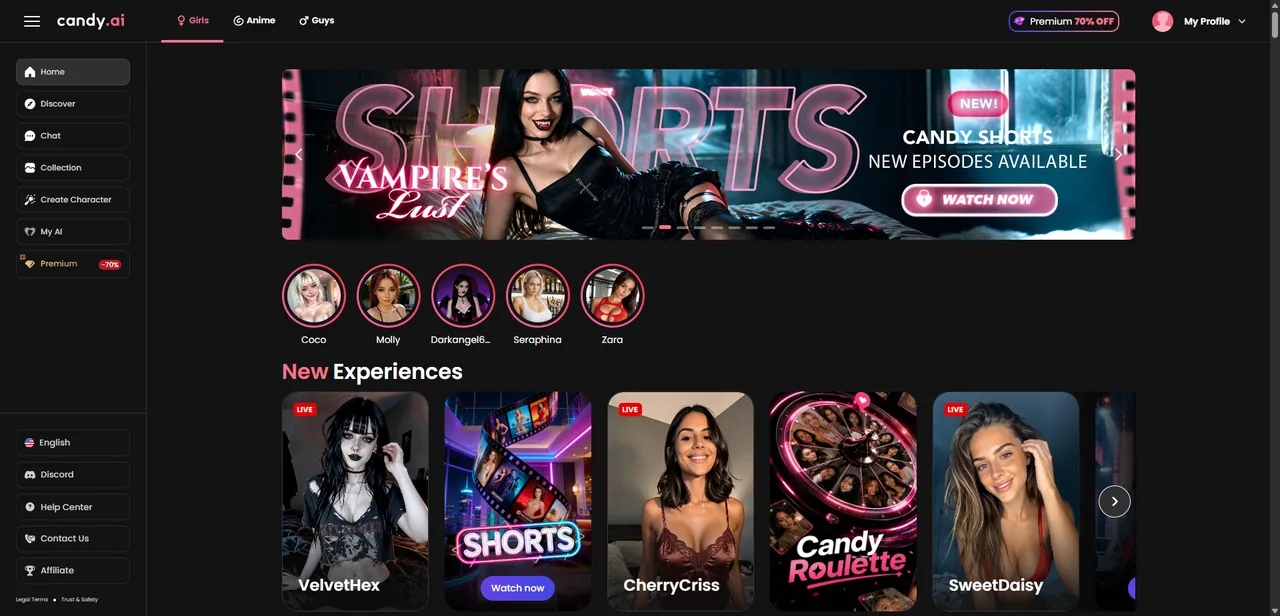
Start on Candy.ai. In the saved dashboard, Create Character sits in the left sidebar between Collection and My AI. That is the route into the custom builder. The featured character feed and Shorts banner are separate destinations, so use the sidebar when you want to make your own character.
Step 2: Choose Anime or Realistic
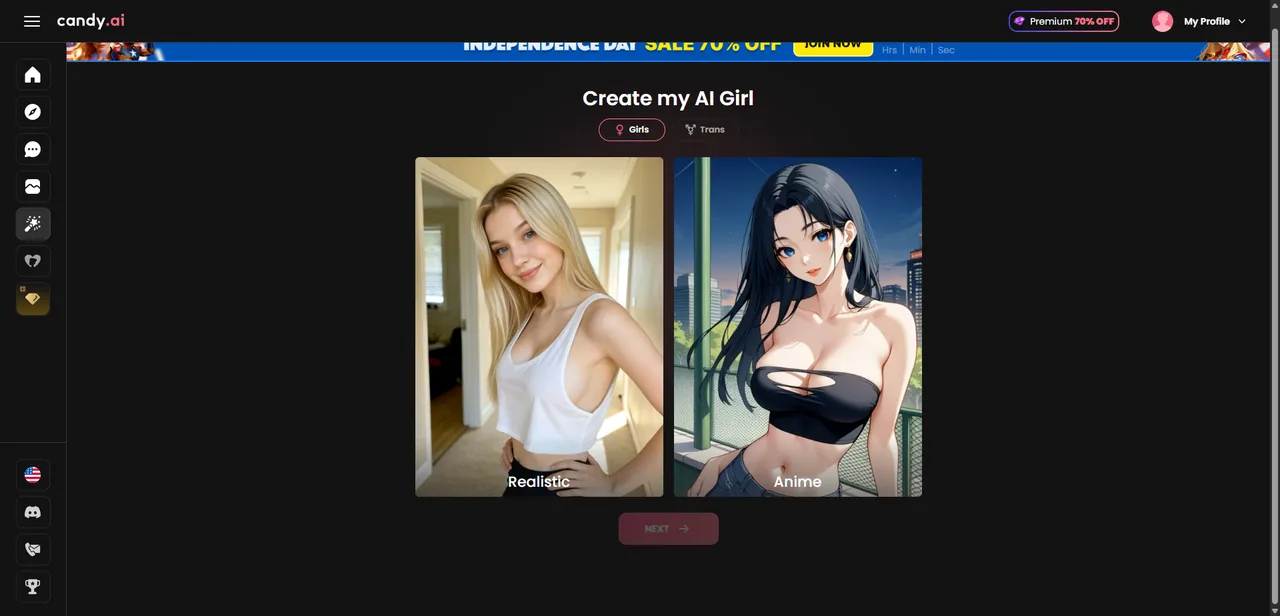
The next image shows two style cards under Create my AI Girl: Realistic and Anime. Choose Anime if you want an illustrated waifu, or Realistic if you prefer a photographic look. Use the visual style you actually want to keep exploring; the screenshot offers no reason to treat one as the default for everyone. Then continue with Next.
Step 3: Set ethnicity and an adult age
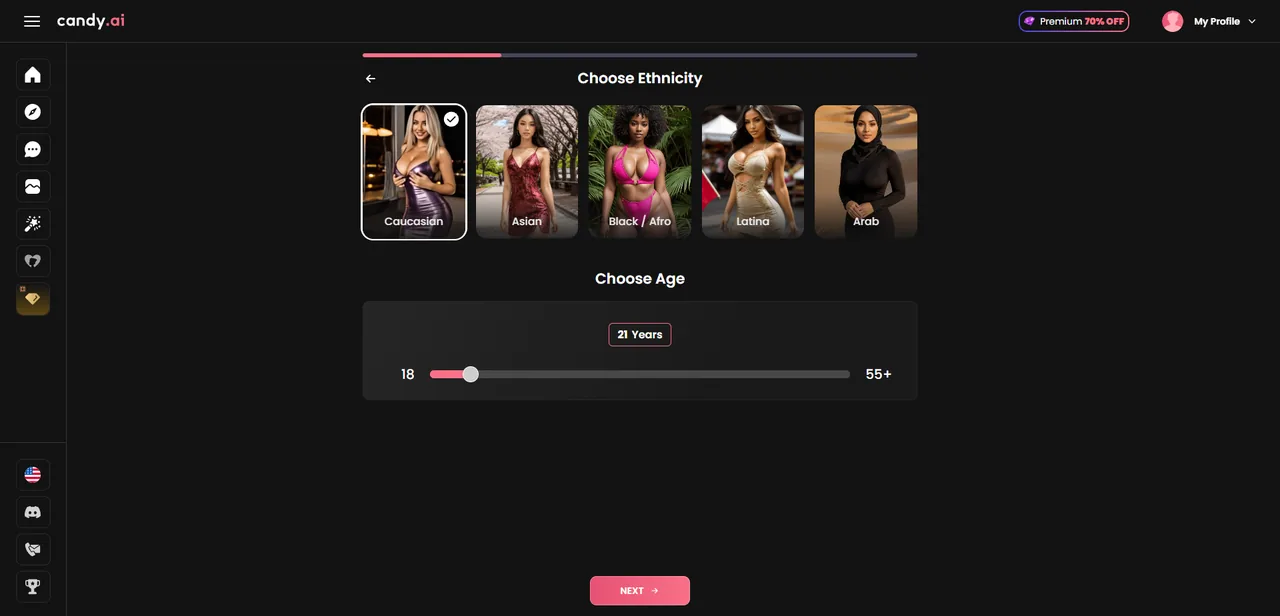
The saved appearance panel has five ethnicity cards and an age slider labelled 18 to 55+, with 21 selected. Choose an explicitly adult character and check the selected age before continuing. These are recorded controls, not a promise that every card remains available today.
Candy's V2 creator help, checked October 3, 2026, lists Caucasian, Asian and Latina; it still describes Arab and Black/Afro as in development. It also says new V1 creation is unavailable and V2 cannot be downgraded to V1. If your options differ from this image, follow your current creator.
Step 4: Choose hair and eyes
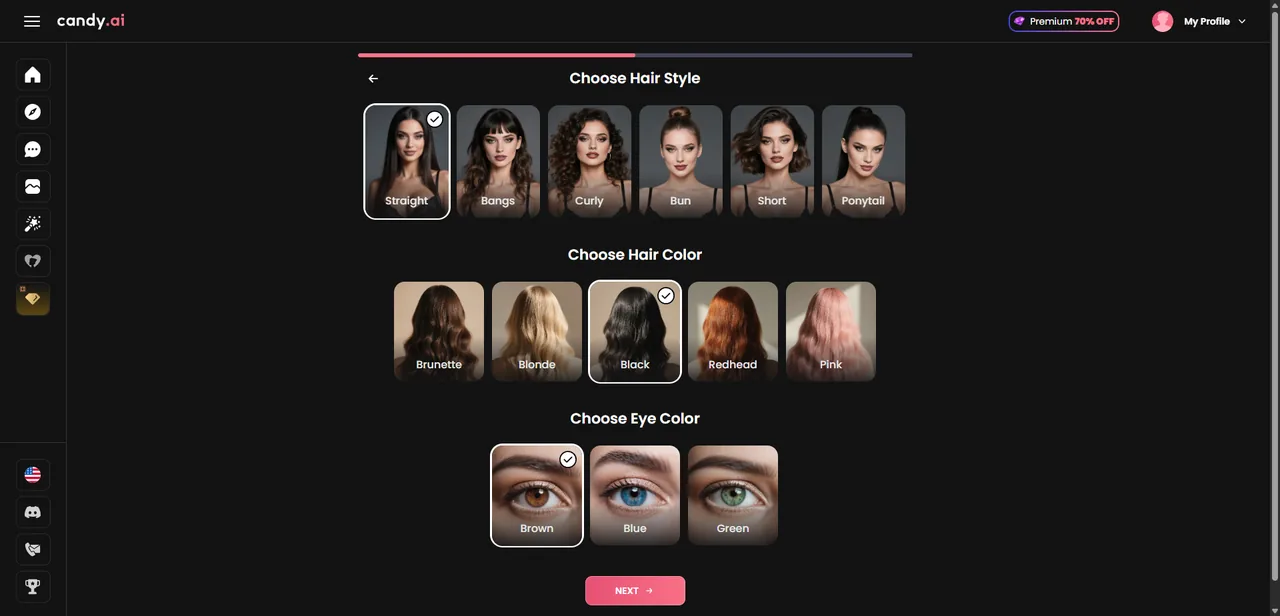
This panel separates hair style, hair color and eye color. The saved selection is straight black hair with brown eyes; checkmarks identify the chosen cards. Keep a simple visual idea in mind as you work through the three rows, then check that each selected card matches it. You will have another chance to read the appearance summary before finishing.
Step 5: Review body and figure choices
The next panel contains body and figure presets. Choose the available options that fit your character idea and continue. Treat these as appearance selections: the image does not show what can be edited after creation, or whether later generated pictures will reproduce every choice consistently.
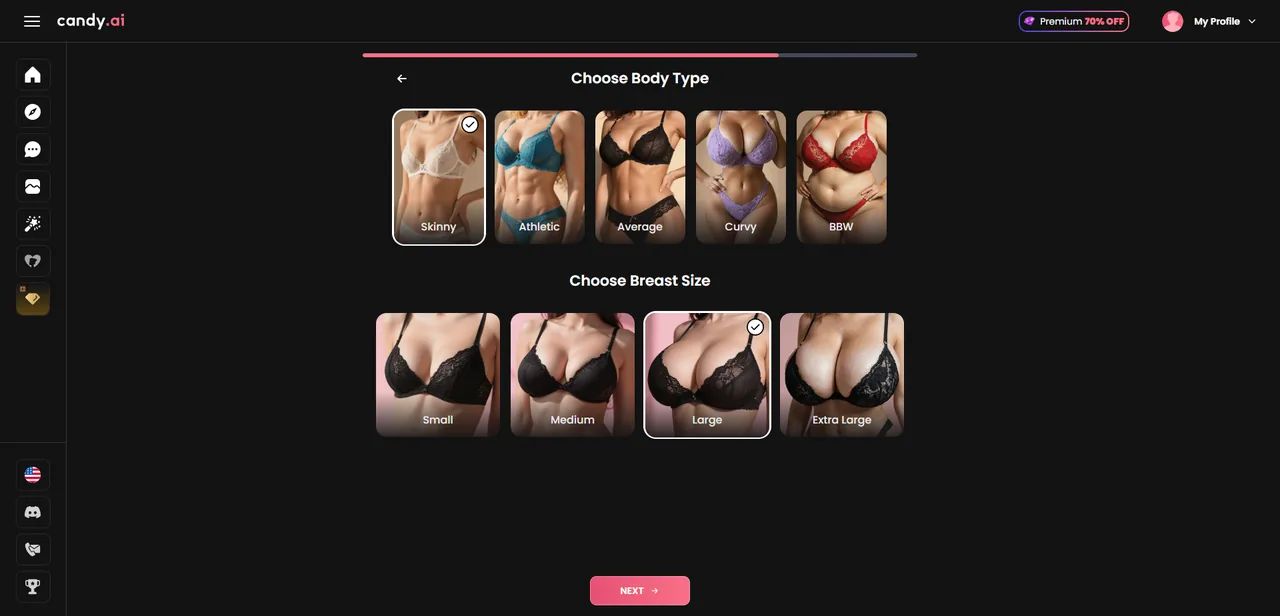
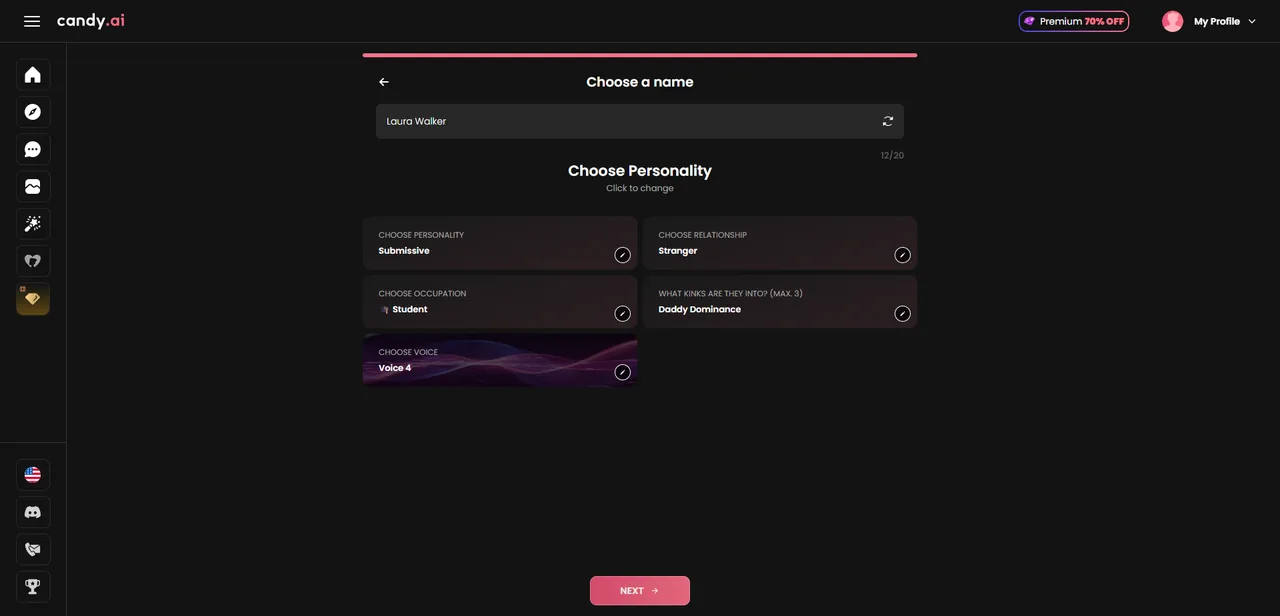
Step 6: Name the character and choose settings
Here the flow moves from appearance to character settings. The image shows a name field, a name-randomizing icon, and selectors for personality, relationship, occupation, kink preferences and voice. Those selectors are useful places to slow down: a relationship label and an occupation express different parts of the character you are planning.
Keep the design small: one occupation, one hobby, one opinion and an unfinished plan. Authored example: 'Maya, 28, is an illustrator who collects concert posters. She prefers small music venues and is planning her first exhibition.' You now have a topic to ask about and a scene to suggest. This is a writing example; no Candy.ai response was generated from it.
Match your idea to the selectors actually available, or use it to frame your opening message. The captured screen shows presets rather than a free-text backstory editor, so do not assume there is somewhere to paste a long biography. The voice selector records a choice, without proving call access or audio quality.
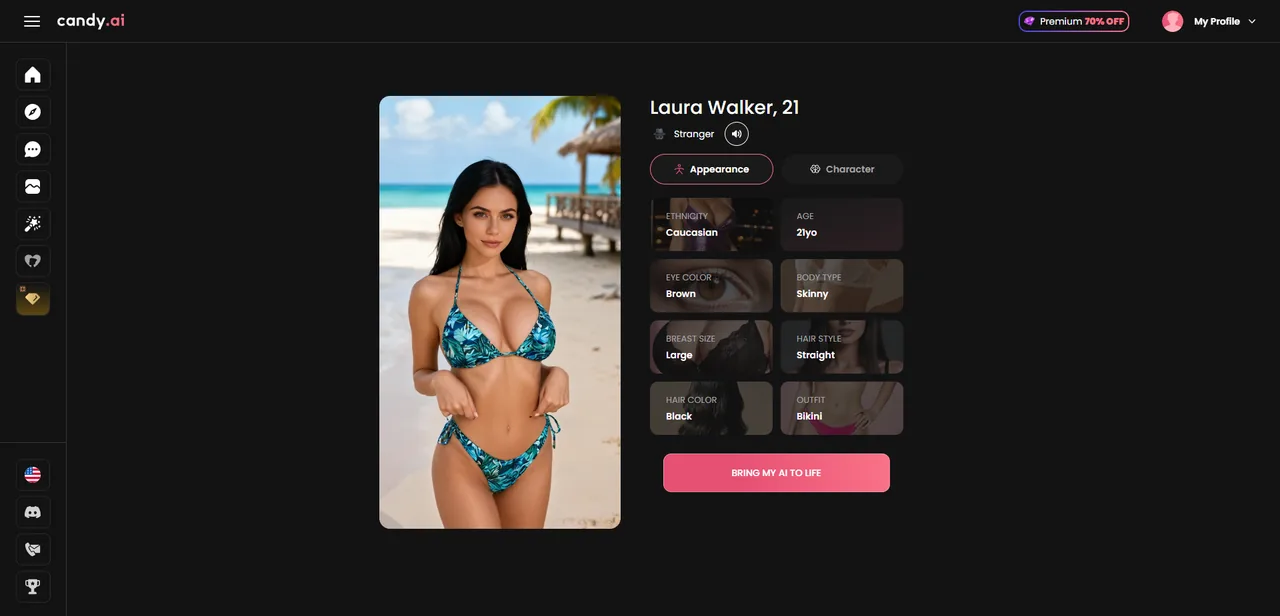
Step 7: Check the preview before finishing
The review image shows Laura Walker, 21, with a portrait, an open Appearance tab and a separate Character tab. Compare the displayed appearance summary with the choices you meant to make. When you are satisfied, Bring my AI to Life is the final creation control shown here. This frame records the preview; it does not establish an immediate first-message result.
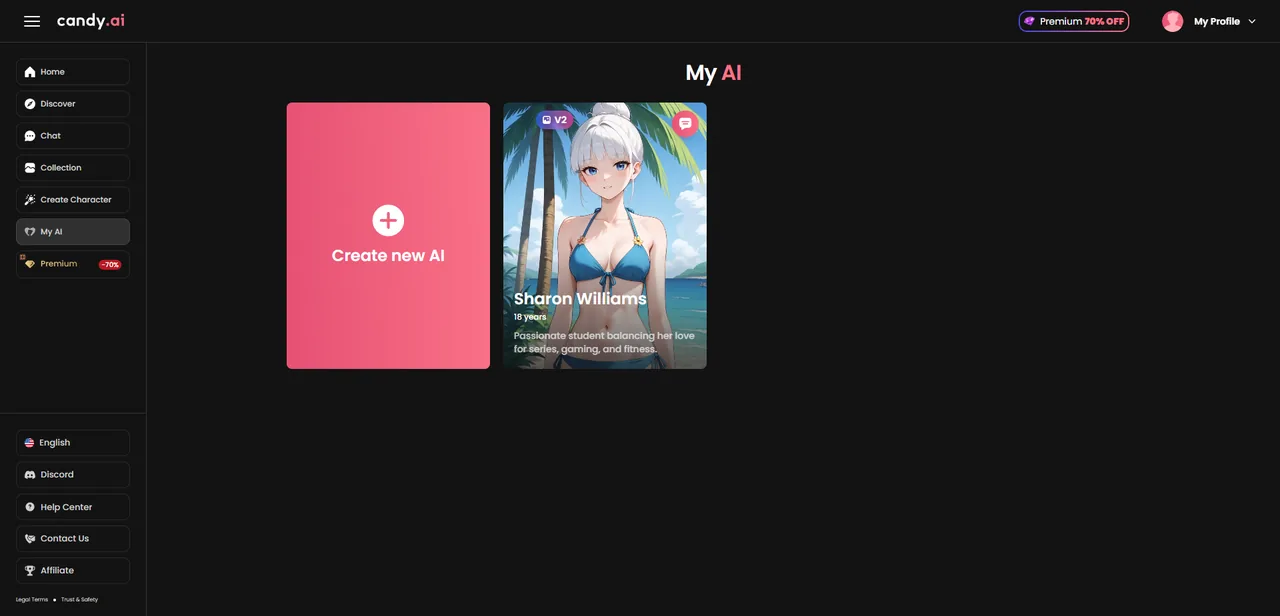
Find saved characters under My AI
The last screenshot switches to a separate anime example. My AI contains a character card beside a Create new AI tile. It is not the realistic Laura preview from the preceding image. Use this picture to recognize the saved-character page; the extra creation tile alone tells you nothing about current account limits.
Which settings can you change later?
Check editing one field at a time. Candy's greeting guidance, checked October 3, 2026, documents changing a created AI's greeting through the three-dot menu. Appearance editing remains unestablished by these screenshots and help pages, so review those choices before finishing.
Candy's chat-mode help, checked the same day, describes switching eligible Create My AI characters to Roleplay Mode through the chat menu and calls that change permanent. Check the relevant control before using it. If being able to revise the character's appearance later is essential, you should skip committing to this creator until your account or Candy support confirms those edits.
Start with one conversation, then decide
Give the first exchange something concrete to work with: ask Maya which piece she would put in her exhibition, for example. Read the reply before adding more backstory. If continuity matters, introduce one harmless detail and check it in a later conversation. These screenshots cannot tell you how reliably Candy recalls details, or whether anything changes after several days. The explanation of how AI companions work gives context for that distinction.
The practical stopping point is a character whose preview matches your choices, followed by a conversation you want to continue. Check your account's current creation and media requirements before spending. When comparing other apps, use the AI companion cost guide to separate the subscription from extra purchases.
This walkthrough records Candy.ai’s own controls. If you want to try a separate app, browse OurDream and check its current creator and access requirements. Continue on Candy.ai when your goal is to complete the character shown in this guide.
Frequently asked
How long does it take to create an AI girlfriend on Candy.ai?
The screenshots show seven numbered steps plus a separate My AI example. No completion time was recorded; the time you spend choosing settings will vary.
Can I change my Candy.ai character after creation?
Candy's public help documents editing a created AI's greeting through the three-dot menu. It also describes a permanent switch to Roleplay Mode for eligible created characters. Neither those pages nor these screenshots establishes which appearance fields can be edited later, so check the specific field before relying on it.
Why does the ethnicity screenshot show options missing from my creator?
It is a saved interface capture. Candy's V2 help page, checked October 3, 2026, lists Caucasian, Asian and Latina, with Arab and Black/Afro still described as in development. Follow the options available in your current account.
Where do I enter a personality or backstory?
Step 6 shows a name field and selectors for personality, relationship, occupation, preferences and voice. A free-text backstory field is not visible in this capture. Plan a short character idea, then match it to the controls your account actually provides.
Will the character remember everything after a few days?
These images contain no conversation sequence, so they cannot establish recall or a memory activation period. If continuity matters, introduce one harmless detail and check it in a later conversation. The result is something to observe, rather than a guarantee supplied by this guide.
Do I need Candy Premium to create a character?
The saved screens do not establish the account tier, payment history or current creation entitlement. A Premium promotion in the header does not answer that question. Check the requirement shown in your own account before confirming creation or buying a plan.